
How the calendar works
The calendar is the main place where you see all bookings, available time, and workload of your masters.
This is where you manage your work daily and quickly respond to changes.
What the calendar shows
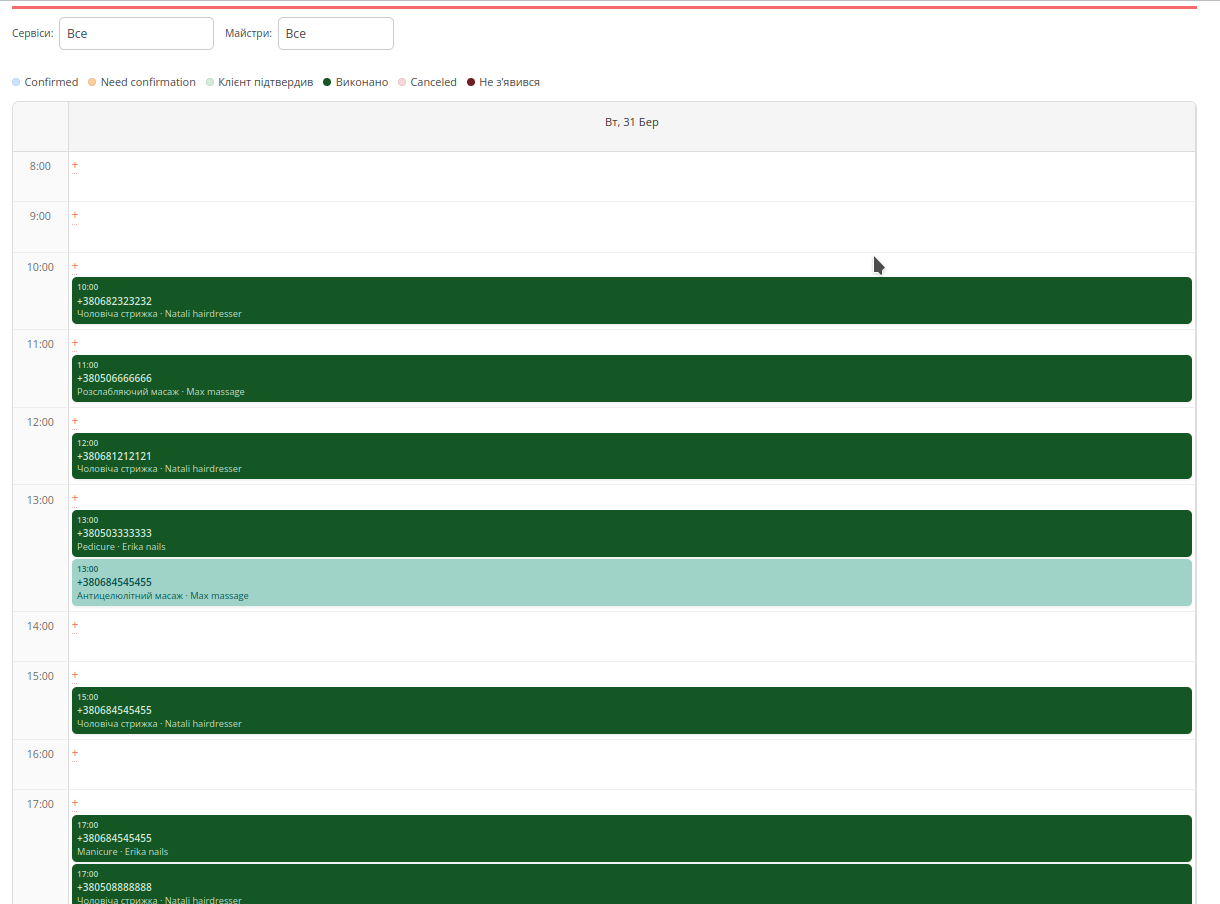
In the calendar, you can see all bookings by date and time. This helps you quickly understand which time slots are already booked and which are still available.
- bookings by date and time;
- distribution by masters;
- distribution by services;
- event statuses;
- overall workload overview.
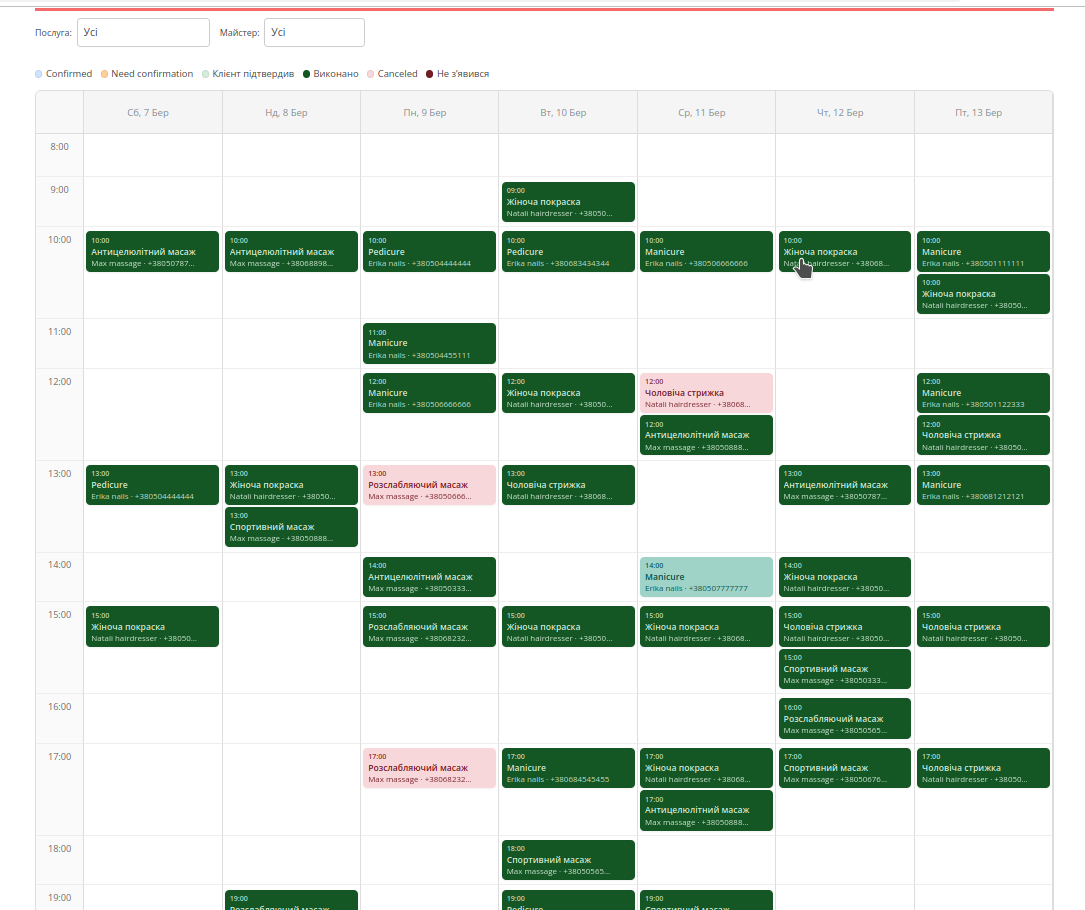
Available view modes
Weekly calendar
The most convenient mode for daily work. You can see the entire week at once and evaluate workload in advance.
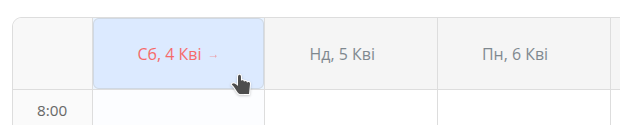
Daily calendar
Useful if you want to view one specific day in detail with all bookings by hour.
To switch to a specific day — click on a cell in the calendar header.
How to use the calendar
1. Open the required week
Switch between weeks to view upcoming bookings and available time slots using the navigation below.
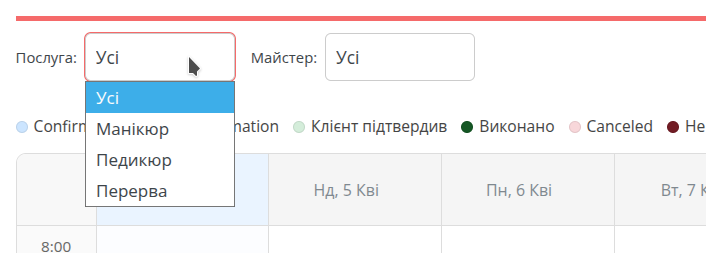
2. Use filters
If you have multiple masters or many services, filter the calendar to see only the relevant bookings.
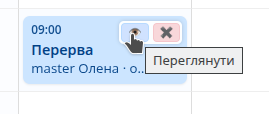
3. Click on a booking to view details
You can open an event, change its status, check client details, and edit it if needed.
4. Add new bookings directly from the calendar
If a client contacts you directly, you can create a booking manually and immediately see it in the calendar.
To add a booking — simply click on a time slot. Details are explained in the next lesson.
How bookings appear in the calendar
Events appear in the calendar automatically after a booking is created.
- when a client books through the public page;
- when you add a booking manually;
- when a master or admin updates an event;
- when the booking status changes.
Events are stored as separate records linked to a client, service, master, date, status, messenger type, and language.
Important things to know about availability
A time slot cannot be double-booked
If a slot is occupied by an event, the system will not allow another conflicting booking for the same master.
Past events have limited editing
For past bookings, usually only the status and comments can be changed to maintain accurate history.
The calendar updates with status changes
If a booking is canceled, confirmed, or completed, it immediately affects how it appears in the calendar and reports.
Useful tips
Use weekly view
This is the most convenient way to see both today and upcoming bookings at a glance.
Use filters
If you have many masters, filters will help you stay organized.
What’s next
Now that you understand how the calendar works, the next step is to learn how to add bookings manually.