
How reminders and confirmations work
The system automatically reminds clients about their appointments and helps reduce missed visits.
Reminders work through messengers and are linked to the event status.
What reminders do
After an appointment is created, the system not only saves it in the calendar but can also send a message to the client before the visit.
- remind about the upcoming appointment;
- allow the client to confirm the visit;
- allow the client to cancel the appointment;
- help the master better plan their day.
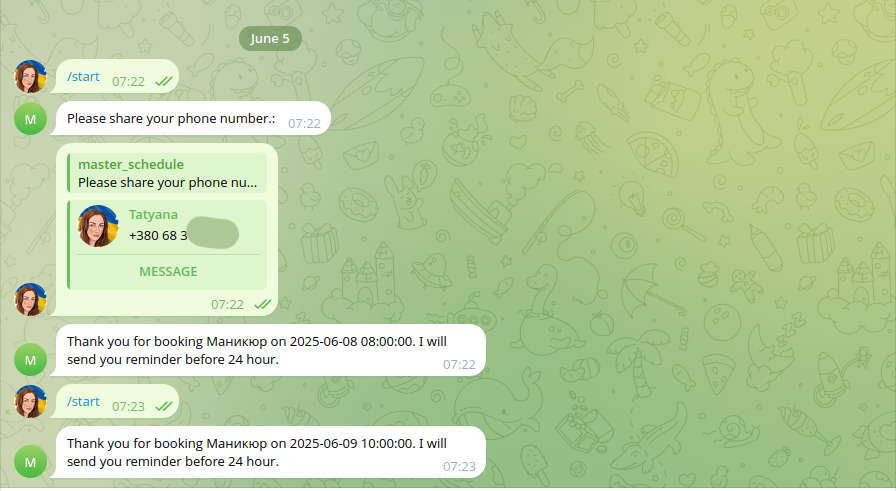
How it works
Step 1. The client creates an appointment
The event is saved with links to the client, master, service, language, and messenger type. This allows sending the correct messages later.
Step 2. The system knows which channel to use
During online booking, the client’s messenger type (e.g., Telegram or WhatsApp) is saved. This determines where the reminder will be sent.
Step 3. The correct language is used
Messages are sent in the language set for the user, making communication clearer for clients.
Step 4. The client receives a reminder before the visit
Your current setup includes a 24-hour reminder with the option to confirm or cancel the appointment. This is one of the most valuable automations in the system.
Which channels are used
The system supports two main communication channels:
- Telegram — the client opens the bot and confirms the booking there;
- WhatsApp — the client receives a message and responds via button or template;
- admin/master can also receive notifications about new events.
The public booking flow already uses messenger selection and redirects the client to Telegram or WhatsApp after creating the event.
What happens after the client responds
If the client confirms
The event status is updated, and you see in the calendar that the booking is confirmed.
If the client cancels
The event moves to a canceled status, and the time slot may become available again depending on your status logic.
If the client does not respond
The appointment remains in the system, and you still see it in the calendar. You can follow up manually or decide what to do next.
How this helps in practice
Fewer missed appointments
Clients receive reminders in the channel they actually use.
Less manual messaging
No need to manually ask every time: “Will you definitely come tomorrow?”
Better daily planning
The master or admin can quickly see which bookings are confirmed and which need attention.
Useful tips
Use the client’s preferred channel
If the client prefers Telegram, avoid switching them to another channel unnecessarily.
Track statuses in the calendar
After confirmation or cancellation, check how the event appears in the calendar to ensure everything looks correct.
What’s next
Once reminders are set up, the next important step is learning how to properly share your booking link.