
How clients book on their own
Clients can book appointments online without messages or phone calls.
This saves your time and automates the booking process.
Where to find your booking page link
In the dashboard right after login

The appearance of your public booking page depends on your profile, masters, and services settings.
How it looks for the client
The appearance of your public booking page depends on your profile, masters, and services settings.
The client opens your link and sees a page with services, descriptions, and available time slots.
- chooses a service;
- selects date and time;
- verifies identity via Telegram or WhatsApp;
- confirms the booking.
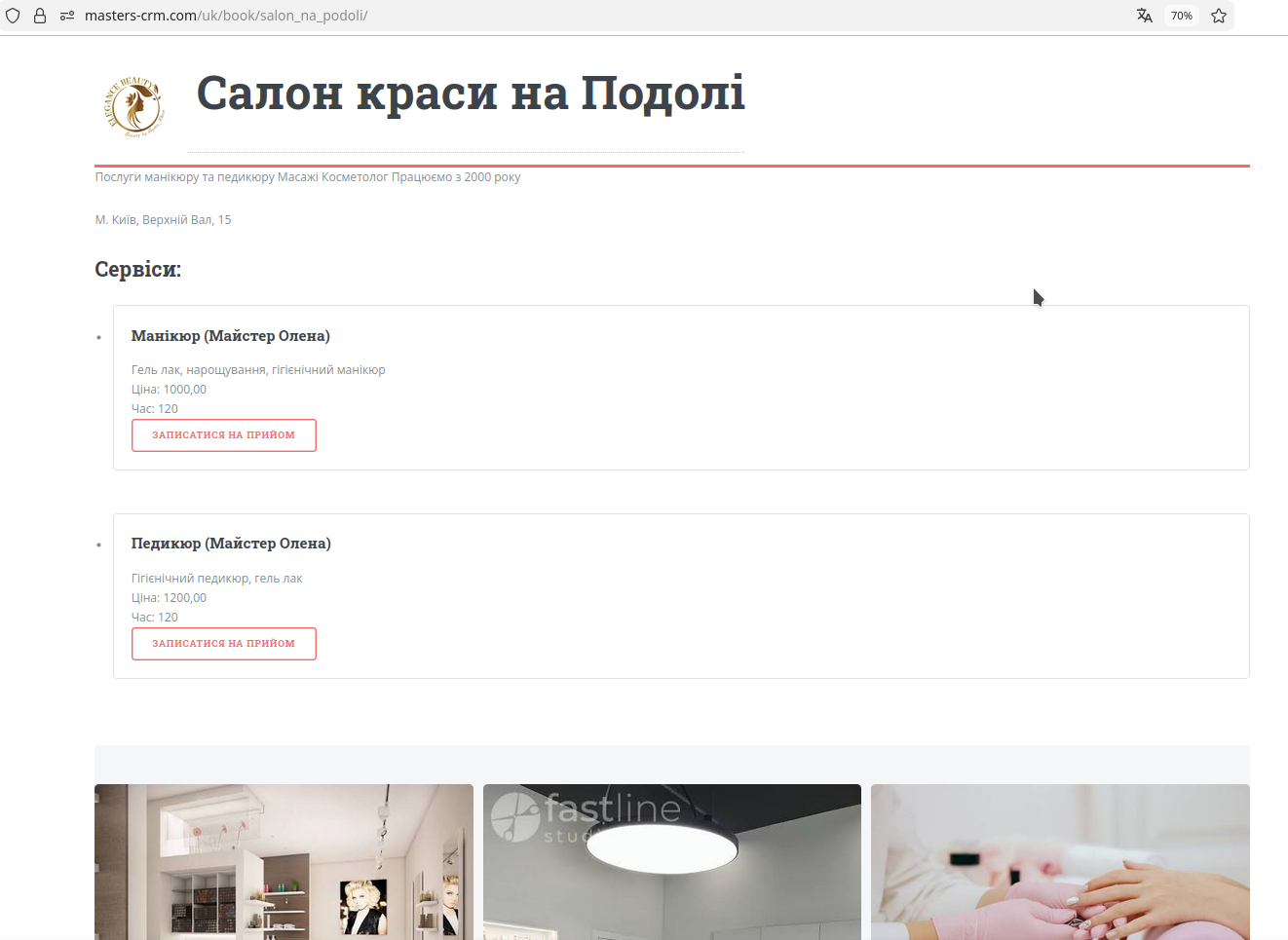
How the booking process works
Step 1. The client opens your booking page link
You send the link to the client or publish it on Instagram or your website.
Step 2. Selects service and time
The client sees the list of available services and chooses one. The system shows only available time slots based on schedule and service duration.
Step 3. Confirms identity
The client verifies their identity (to prevent bots and spam) via Telegram or WhatsApp.
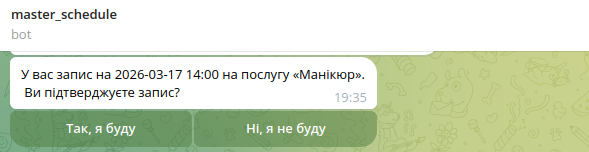
Step 4. Receives reminders
24 hours before the appointment, the system sends a message via the messenger used during verification. The client confirms that they remember the appointment and will attend.
What happens after booking
After the client books, the system automatically processes the event.
- the booking appears in the calendar;
- the client and their history are saved;
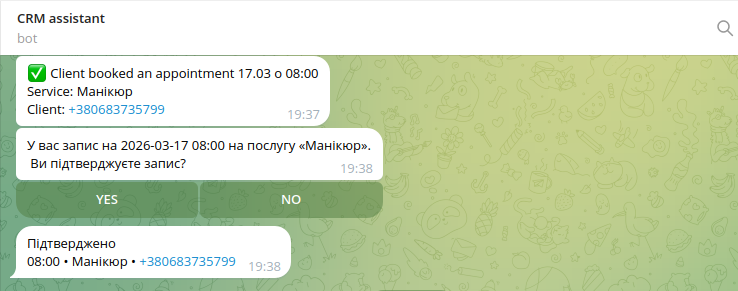
- if booking confirmation is enabled — you receive a confirmation request via the Telegram assistant bot, or you confirm it manually in your dashboard;
- reminders are sent to the client 24 hours before the appointment (if the booking is active and confirmed if required).
This all happens automatically without any additional actions from your side.
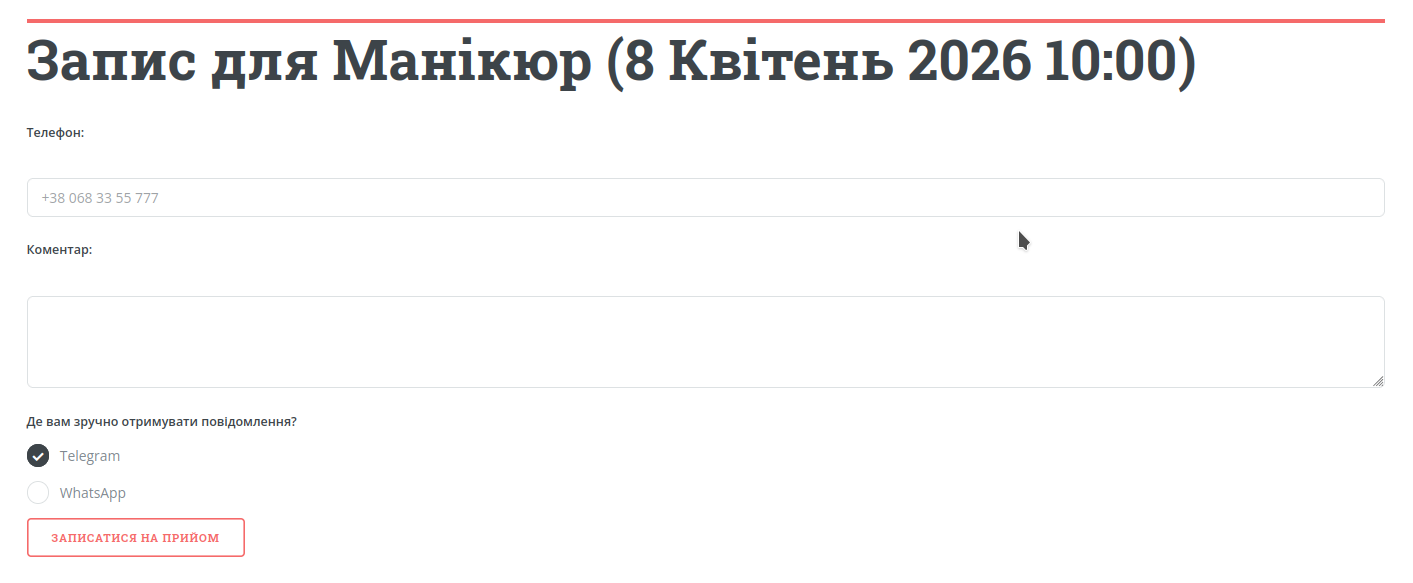
Booking confirmation
Automatic booking
If confirmation is not required, the booking becomes active immediately.
Master confirmation
If confirmation mode is enabled, the master receives a notification and confirms the booking manually.
Client confirmation
Before the visit, the client receives a reminder and can confirm or cancel the booking.
Useful tips
Share your booking link
Add it to your Instagram bio or pin it in your messenger chats.
Check your page as a client
Open your booking page regularly and see how it looks from the client’s perspective.
What’s next
The next step is to understand how reminders and booking confirmations work through messengers.